MelGeek Lab Releases Practical Guide for Fixing Keyboard Lag
MelGeek Lab published a practical troubleshooting guide on December 22, 2025 that explains causes and step by step fixes for keyboard lag on both wired and wireless keyboards. The resource matters because input delay can degrade everyday typing and competitive gaming, and the guide offers concise, actionable steps users can apply immediately.
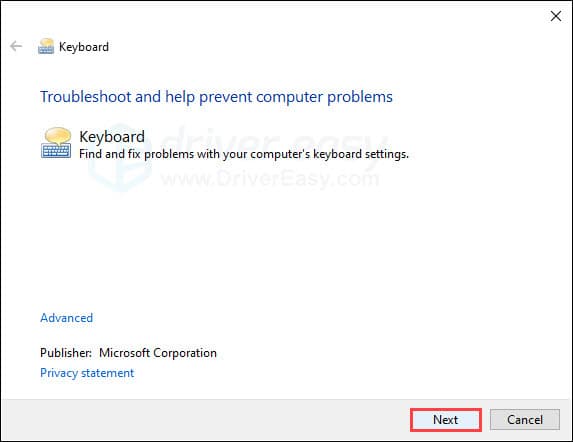
MelGeek Lab published a concise troubleshooting resource on December 22 that lays out what keyboard lag is, what commonly causes it, and how to fix it in straightforward steps. The guide defined keyboard lag as the delay between a keystroke and the host registering it, and it emphasized that causes span hardware, software, signal interference, and system load.
The guide opened with common wireless issues that users encounter, including low batteries, aggressive power saving settings, weak signal or obstructed line of sight, and USB receiver or port problems. It also highlighted driver and operating system conflicts, high CPU usage from background apps, aging hardware components, and firmware bugs as regular culprits. That range of potential causes explains why lag can appear suddenly, and why simple checks often resolve the problem quickly.
Readers were given a clear list of step by step fixes to try before pursuing service or replacement. First, check and charge batteries, and disable any power saving features that might throttle the keyboard. Next, move the keyboard closer to the receiver and remove metal obstructions to improve signal quality. Try a different USB port or use a USB extension to bring the receiver closer to the device. Update drivers and firmware, then restart the host. Close unnecessary background applications and monitor CPU and memory usage to rule out system load. If available, test wired mode to isolate whether the problem is wireless. For persistent issues, consult vendor support or consider hardware replacement.

The guide also offered advanced recommendations for users who need low latency for gaming. Use wired USB mode for competitive play when possible, experiment with supported polling rates, and inspect operating system power settings that can throttle USB devices.
This practical walkthrough matters to both general users and the mechanical keyboard community because it condenses troubleshooting into actionable moves that do not require specialist tools. Verify drivers and firmware versions, try the simple physical fixes first, and document steps if you contact vendor support. Following the guide can save time, restore responsiveness, and help players and typists maintain peak performance.
Sources:
Know something we missed? Have a correction or additional information?
Submit a Tip